Turn Customer Reviews into Useful Content
Public profile and review links can be shared on every plan. Review cards require Starter or a higher tier; website widgets require Growth or a higher tier. Choose feedback for what it explains, and preserve enough context for readers to judge the experience themselves.
Choose a Review That Answers a Real Question
Think about what prospective customers need to know: whether communication was clear, what the service involved, or how a problem was handled. A specific comment about one of those subjects can be more helpful than a short string of praise.
Present the review as one customer's experience, not a guarantee of what every customer will receive. Avoid changing its meaning by lifting a positive phrase out of a mixed review. When you select feedback for a post, keep a link to the original so readers can explore the context.
Write a Caption That Adds Context
Explain why you are sharing the feedback: thank the reviewer or connect their comment to a service you offer. Leave the review intact, and do not describe email confirmation as independent proof of a purchase.
Include readable text alongside an image, use the channel's alternative-text option where available, and include the review link. Check that a crop has not cut off the name, rating, or source before publishing.
Display Reviews on Your Website
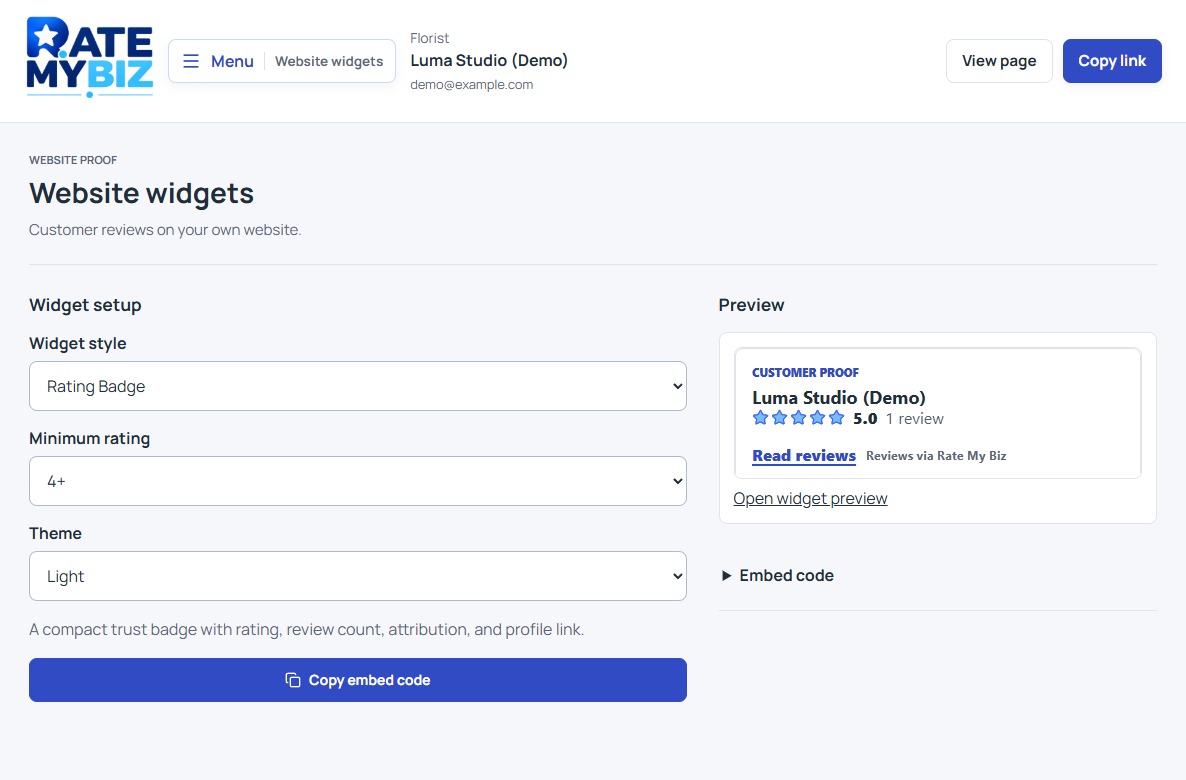
Widgets require Growth, Pro, Business, or Enterprise. On an eligible plan, open 'Widgets' and use 'Widget setup' to choose a 'Widget style,' 'Minimum rating,' and 'Theme.' Inspect 'Preview' or 'Open widget preview,' then choose 'Copy embed code.' Free and Starter show a plan prompt instead.
Add the code in a website area that supports an embedded frame, or pass it to whoever maintains your site. Check the published result on desktop and mobile, including the links back to your public profile. Your website editor must allow this kind of embed; copying the code alone does not install it.
 View Full-Size Screenshot(opens in a new tab)
Keep Selected Reviews in Perspective
A widget can display a selected set of reviews based on your settings. That selection does not recalculate your overall public rating: eligible published reviews still contribute to the score, including critical feedback. Do not present a filtered widget as a complete record of customer opinion.
Review shared material periodically. A downloaded image is a snapshot, while the linked review follows its current public status. If a review is corrected or becomes unavailable, revisit the images and captions you previously posted. Keep the public profile link easy to find so readers can see more than the selected example.
Understand Your Public RatingKeep this in mind
Key Takeaway
Share specific customer experiences with clear attribution and a link to the source. Selected cards and widgets should help readers explore your reputation.