How to Get a Google Reviews Link and More Customer Reviews
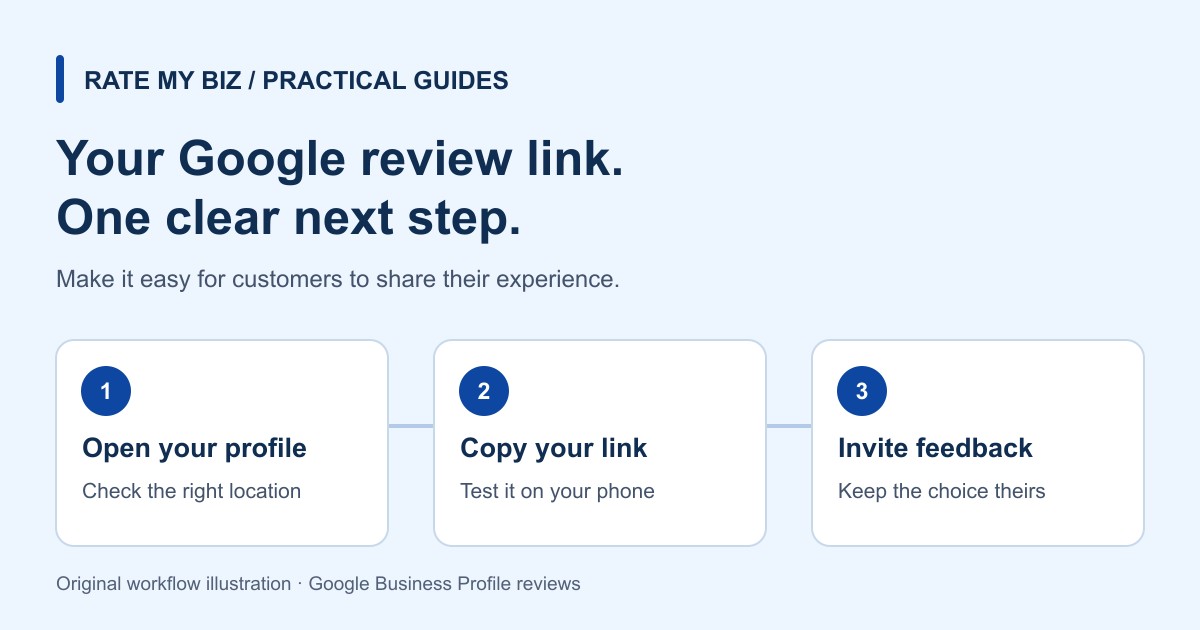
To get your Google reviews link, open the Business Profile you manage, choose Read Reviews, then Get more reviews, and copy the link. Send it after a real customer experience with a short, neutral invitation. This guide walks through the setup, ready-to-adapt messages, QR codes, troubleshooting, and a practical routine for collecting more useful feedback.
Still waiting for Google to verify your business?
Getting a Google Business Profile verified is not always straightforward or immediate. Google may require a video or additional verification steps. Its review can take up to five business days, and occasionally longer. Some businesses need to try again before verification is complete.
Verification and customer reviews are separate steps: an approved profile does not guarantee that customers will leave feedback.
Read Google's business verification guidanceHow to Get a Google Reviews Link: Step by Step
Start with the correct business and location. If you manage several branches, a link for one branch should not be used on another branch's receipt. Keep each location's name and review destination together in your internal records so staff can select the right one without guessing.
Use the Google account that manages the profile. Google's current help page describes the following route. Interface labels can vary by language and layout, so follow the linked official instructions if your screen looks different.
 View Full-Size Screenshot(opens in a new tab)
- Open your Business Profile through Google Search or business.google.com and select the relevant business.
- Open Read Reviews, then choose Get more reviews.
- Use the copy control to save the review invitation address.
- Paste it into a draft message. Open it on your phone and check the business name and location before sharing it.
- Save the checked address with a clear internal label, such as 'Riverside branch — Google review request'.
This 58-second video from the official Google Business Profile channel explains requesting customer reviews with a link specific to your business. Google published it in 2022, so its screen layout may differ from today's interface. For the current route, follow the written steps above: open your profile, choose Read Reviews, select Get more reviews, and copy the link.
Watch on YouTube (opens in a new tab)Google Reviews Link for Customers: Choose the Right Destination
A review request link, a general Maps listing, and a link to an existing review serve different purposes. The first invites feedback. The second helps people explore the business. The third shows a particular customer's published experience. Check the landing screen rather than deciding from the appearance of the URL alone.
If you are searching for a 'link to my Google reviews', decide whether you want people to write or read. For a request, use the invitation address from the previous section. To share an existing review, Google documents a separate Maps route: find your business, open its reviews, choose the review's menu, and use its sharing options.
Avoid copying the browser address from an account management screen. Customers should not land on settings or a manager sign-in page. Test the destination without publishing a review for your own business. When someone reports a problem, ask which screen appeared; do not ask for their Google password or verification code.
How to Get Google Reviews for Your Business
Treat review collection as a small part of customer service. Choose a completed event, prepare a clear message, make the destination easy to open, and decide who will read the feedback. A repeatable process is easier to maintain than an occasional push when the business suddenly wants more stars.
For example, a repair business can attach an optional invitation to its normal collection follow-up. A studio can include one after a completed appointment. A retailer can make the invitation available after delivery, when the customer has actually received the purchase. These are practical workflow suggestions, not timing rules or performance guarantees from Google.
Include customers consistently, regardless of the outcome you expect. Keep help available without making a support conversation the entrance requirement for public feedback. Customers should understand that a review is optional and that declining will not affect the service they receive.
Request Reviews on Google Without Steering the Rating
Google permits invitations for genuine experiences, but prohibits incentives, fabricated feedback, and selectively seeking positive reviews. Discounts, prizes, or free extras tied to a review can violate that policy even when you say the review may be honest. Do not buy reviews or use staff and affiliated people to manufacture approval.
Do not use a satisfaction question to send happy customers to Google and unhappy customers only to a private form. This is commonly called review gating. Google's current policy also prohibits pressuring customers to review on the premises, requesting particular review content, and requiring staff to solicit a certain number of reviews.
Make the invitation neutral: no requested star score, required wording, or staff-name prompt. Train the team to offer the opportunity and then step back. The customer controls whether to respond and what to say.
How to Send a Google Review Link to Customers
Use a channel the customer already recognizes from the transaction. Identify the business, refer briefly to the completed visit or purchase, explain that you welcome honest feedback, and provide one clear link. A message with several competing buttons makes the next step harder to understand.
Email gives you room for context and a descriptive link such as 'Share your experience on Google'. SMS and WhatsApp suit a shorter message when that channel is appropriate for your existing customer relationship. Avoid including sensitive purchase details in a notification preview. Respect communication preferences and stop requests when someone asks you to.
Before reusing a template, replace every placeholder and check the destination. Review the message on an actual phone: can someone recognize the sender, read the invitation, and tap the link comfortably? A QR image inside a message is less convenient than a clickable address when the customer is already reading on their phone.
Requesting Google Reviews From Clients: Message Examples
Adapt the wording to the relationship rather than sending the same formal paragraph to everyone. A longstanding client may recognize your personal name; a first-time customer may need the business name immediately. Keep the request separate from an urgent issue that still needs your attention.
For ongoing professional services, choose a completed piece of work that the client can evaluate. Do not imply that future attention depends on a review. A busy client does not owe you a public recommendation, even if they have privately thanked you.
SMS or WhatsApp
Hi [First name], this is [Name] from [Business]. Thank you for your recent visit. You're welcome to share an honest Google review here: [Google review link]. It's entirely optional. Thanks for your time.
After a completed client project
Hi [First name], thank you for working with [Business] on your recent project. If you'd like to describe your experience in your own words, here's our Google review link: [Google review link]. We appreciate your feedback.
One optional reminder
Hi [First name], a quick follow-up to our review invitation: [Google review link]. If you've already shared feedback, thank you. Otherwise, there's no obligation to respond. We appreciate your time.
How to Get More Google Reviews From Customers Over Time
Remove practical obstacles before increasing the number of messages. Check for an incorrect branch, an unreadable printed address, an expired redirect you control, or a template that still contains placeholders. Fixing a broken route is more useful than repeating the same request more often.
Choose a consistent point in the customer journey and keep a simple record of invitations already sent. A weekly operational check can confirm that the message is current and the link still works. Avoid repeatedly contacting the same customer through several channels about the same experience.
If a reminder fits the relationship, one brief follow-up several days later is a reasonable starting experiment, not a Google requirement. Stop after that or when the customer declines. Review whether reminders cause confusion or complaints and adjust your process accordingly.
Do not set a target number of positive reviews for employees. Instead, improve the supporting process: accurate links, clear handover information, and thoughtful responses when customers raise an issue. A review routine should help you hear experiences you might otherwise miss.
Make a Google Review QR Code Customers Can Use
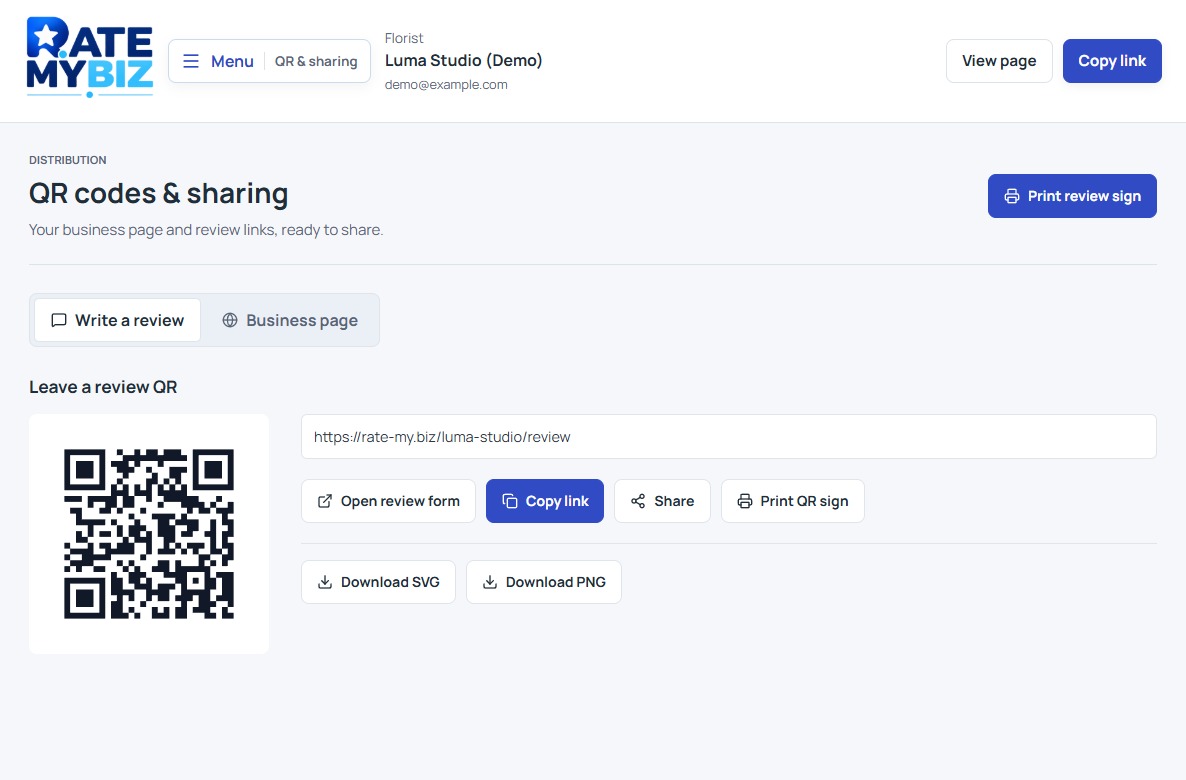
Google's review-sharing panel also provides a QR code. Its current instructions say to generate that code in a computer browser and save the image from the panel. A customer can then scan the printed code with a phone to reach the review destination.
Place an optional invitation where it makes sense after the experience: a receipt, collection card, or takeaway insert. Keep the business name and a short instruction beside the code. Include a readable web address as an alternative for people who cannot or prefer not to scan.
Test the finished print at its actual size, under the lighting where customers will use it. Keep the code's edges and quiet space intact; avoid stretching it or placing artwork over the pattern. Open the result to confirm the location. A successful camera scan does not prove that the destination is correct.
 View Full-Size Screenshot(opens in a new tab)
When Customers Cannot Leave a Google Review
Start by checking the problem, not by sending another invitation. Does the link open the wrong location, ask the customer to sign in, or show a review that is not yet public? These are different situations and need different responses.
A Google account is required to submit a Google review, but it does not have to use a Gmail address. Let the customer handle sign-in themselves. Do not collect account credentials or try to submit their review for them.
Google says publication checks can delay reviews by a few days. A recent profile merge, older software, a policy decision, or restrictions on a business category may also affect availability. There is no reliable promise that every submitted review will appear immediately. Use Google's troubleshooting page instead of asking customers to post repeated copies.

How Reviews Fit Into Local Visibility
Google identifies relevance, distance, and prominence as the main foundations of local results. It says review quantity and positive ratings can contribute to local ranking. That does not mean a particular number of reviews guarantees a position, or that a business can pay Google for a better organic local rank.
Keep business information accurate alongside your review routine. Someone who finds you still needs to understand what you offer, where you operate, and when they can contact or visit you. Reviews provide context; they cannot correct a wrong address or make an unavailable service suitable for a customer's needs.
This official Google video introduces local visibility. The key written points are to verify the business, maintain complete and accurate profile information, respond helpfully to feedback, and understand that relevance, distance, and prominence all influence results.
Watch on YouTube (opens in a new tab)Measure the Process Without Mistaking Clicks for Reviews
Keep a modest operational log: completed customer events, invitations sent through your messaging tool, reported link problems, and published reviews observed during a defined period. If you track link clicks, remember that a click is not a submitted or approved review.
Suppose you send 40 invitations and observe six new reviews that month. Those are useful counts, but they do not prove that six of the invited people reviewed; some reviewers may have found the profile independently. Describe the figures as an observed trend unless your evidence supports a stronger connection.
Compare similar periods and record changes such as holidays, opening hours, or a new location. Avoid drawing big conclusions from a few responses. Use recurring feedback to select a concrete service improvement, then check whether later customers describe the experience differently.
Is Google Customer Reviews the Same as Business Profile Reviews?
No. The phrase 'Google customer reviews link' can describe two different needs. This guide covers reviews associated with a business on Google Search and Maps. Google Customer Reviews is also the name of a Merchant Center feature for collecting feedback from online shoppers through a survey integration.
If your goal is a Maps review invitation, use your Business Profile's link. If you operate an online store and want the Merchant Center program, follow its specific onboarding and technical requirements. Do not assume that a Maps invitation enrolls your store in that program or creates seller ratings in ads.
Build Your Independent Review Page With Rate My Biz
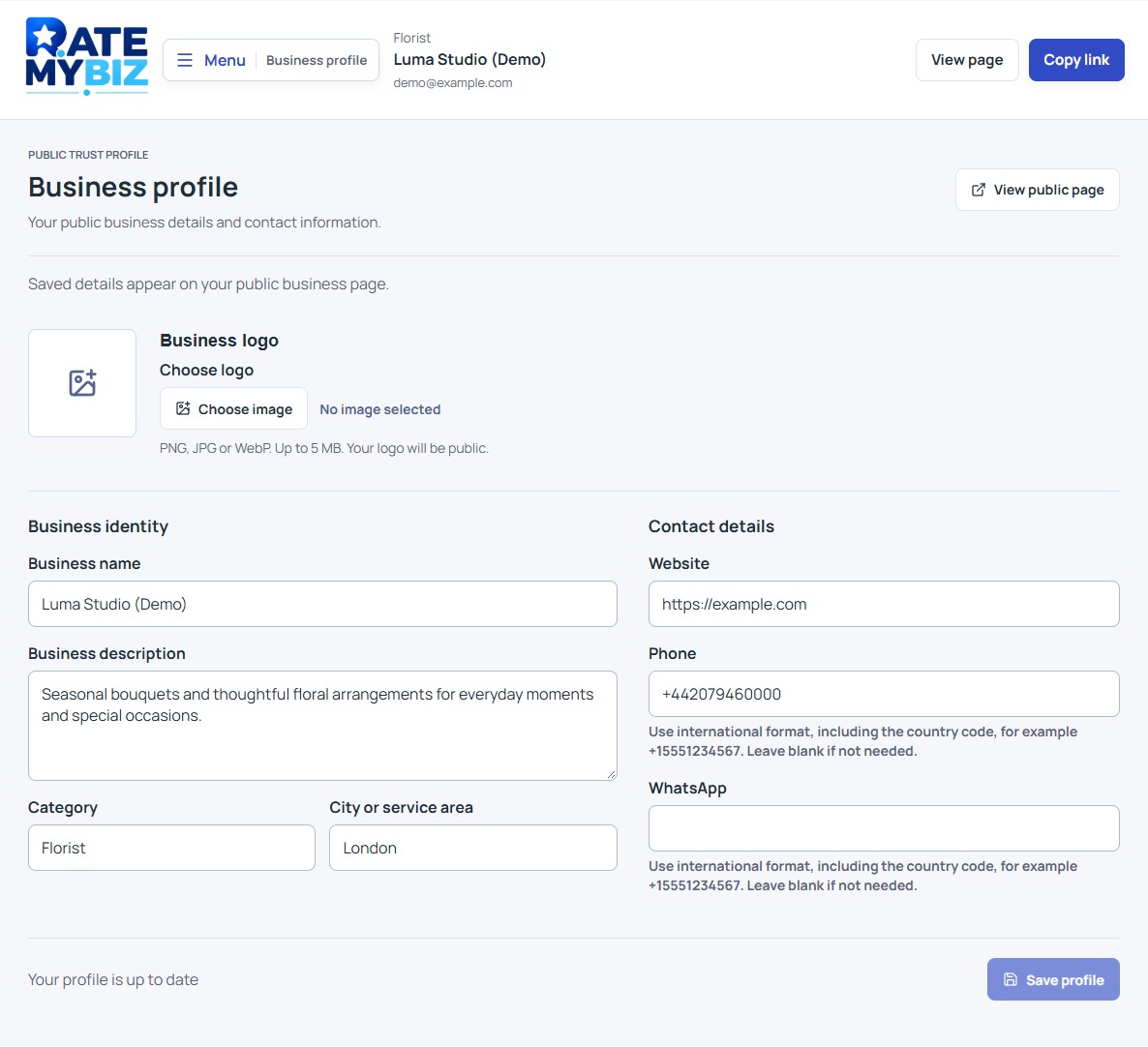
Google is one destination for customer feedback. Rate My Biz gives your business a separate public review page that you can share directly, including when you do not have a Google Business Profile. Customers can learn about the business and leave feedback through its own review form.
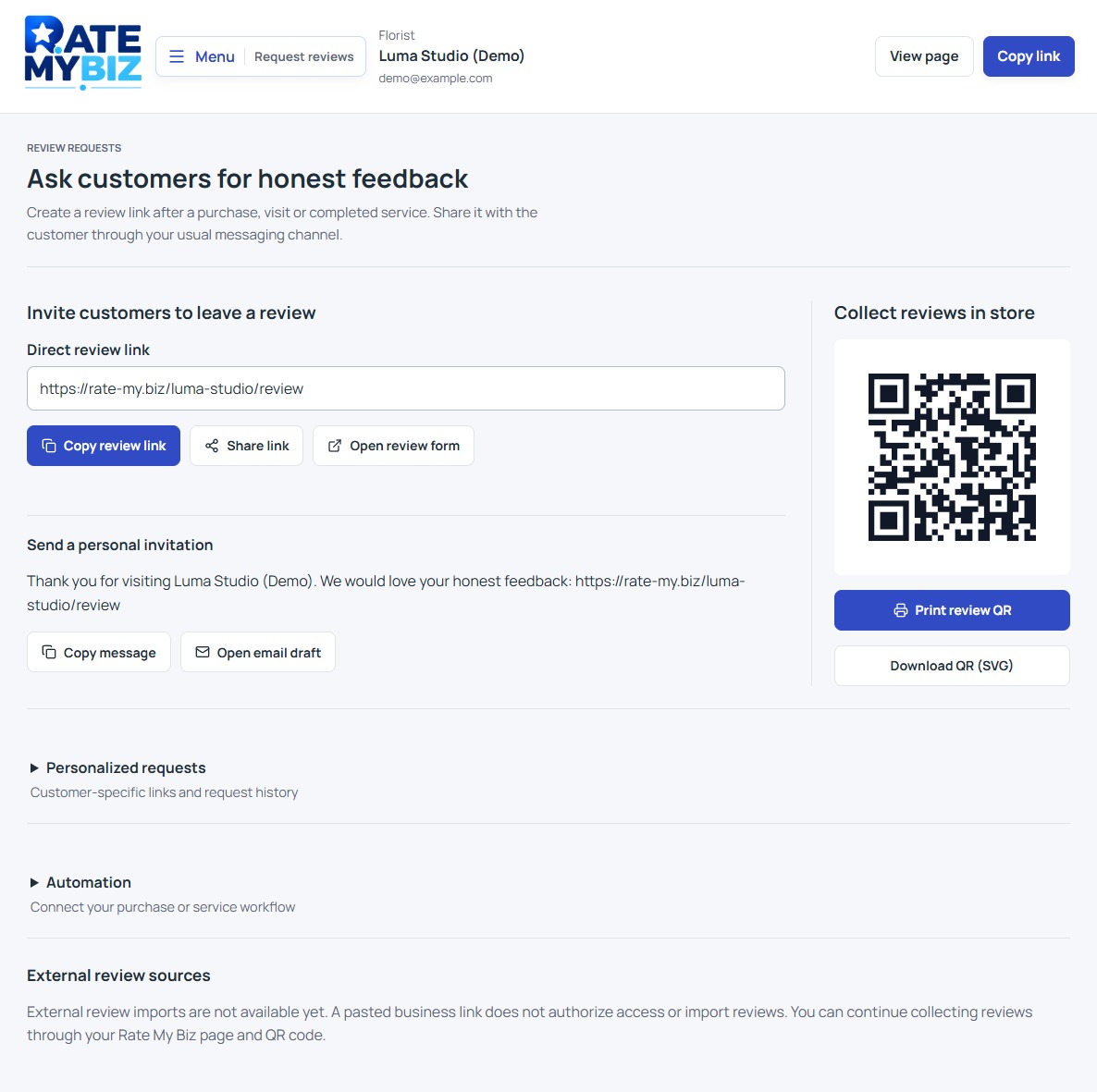
Start with a free account, confirm your email, and publish your business details. From the dashboard, choose the appropriate review link or printable QR code. Manual customer invitations create a recipient-specific link; you send it through your own email or messaging channel. Creating the link does not send a message automatically.
Keep each invitation's destination clear. Rate My Biz reviews are published on Rate My Biz, not copied to Google. The platform does not currently import or synchronize external Google reviews. You can maintain both presences while choosing an honest, understandable invitation for each customer interaction.
 View Full-Size Screenshot(opens in a new tab)
Keep this in mind
Key Takeaway
Check your Google review link, make the invitation easy to use, and give customers full control over their feedback. Maintain a consistent routine and learn from what people say. If you also want an independent review page, create your free Rate My Biz account and start with one clear customer invitation.