Use QR Codes to Collect and Share Reviews
QR codes are available on every plan, including Free. They connect a visit, package, or receipt to your review page. A useful code has a clear purpose, a working destination, and an ordinary link for people who prefer not to scan.
Choose Between Reading and Leaving Reviews
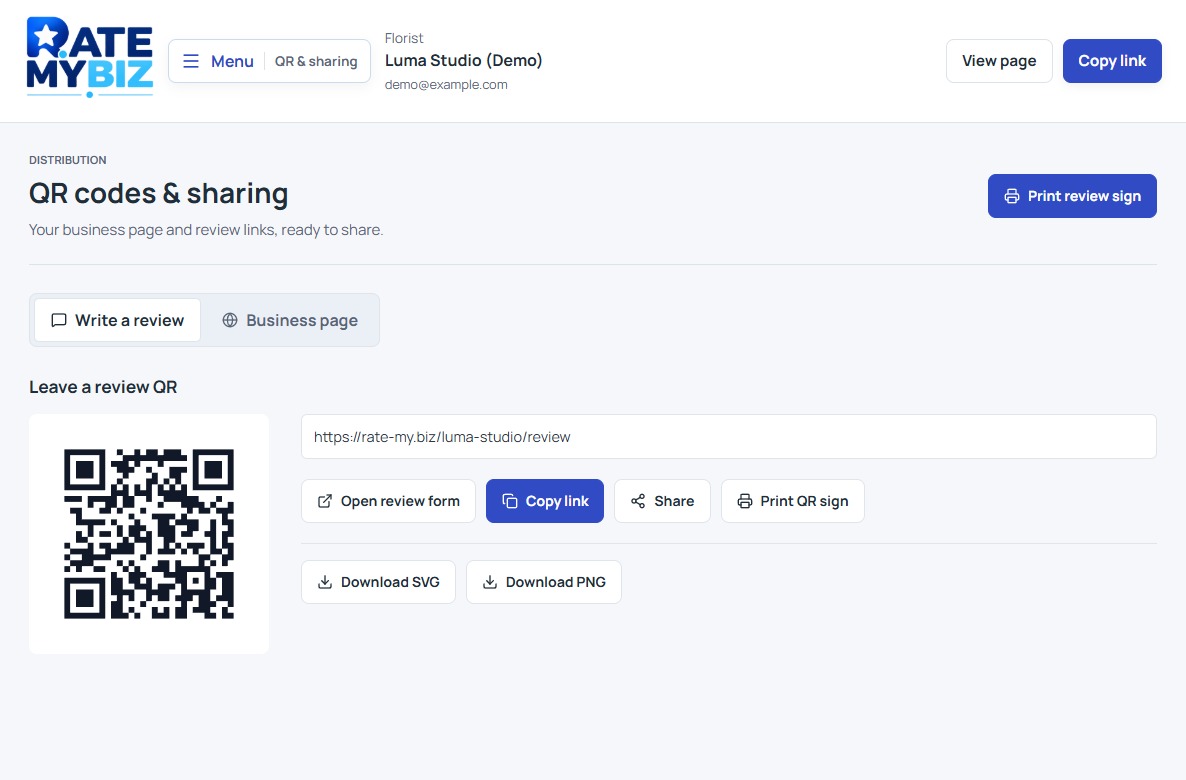
Open 'QR & Share' in your dashboard. 'Read reviews QR' takes visitors to your public business profile, where they can learn about you and read feedback. 'Leave a review QR' takes them directly to the review form.
Match the destination to the situation. A window sign aimed at people considering your business might invite them to read reviews. A receipt insert handed to an existing customer can invite them to describe their experience. Label the code so people know which action to expect before opening their camera.
Download or Print Your Code
Each QR panel includes its destination address and a 'View page' link. Check those before adding the image to your own artwork. The general review-form QR is suitable for shared materials; a recipient-specific invitation should remain with its intended customer.
 View Full-Size Screenshot(opens in a new tab)
- Choose the Read reviews QR or Leave a review QR panel.
- Choose View page and confirm that the business name and destination are correct.
- Choose Download SVG for scalable artwork, or Download PNG for a standard image file.
- Alternatively, choose Print to open the printable page, then use your browser's print controls.
Make the Invitation Easy to Understand
Place a short instruction beside the code and include the business name. Keep the surrounding area uncluttered so the code is easy to find. Preserve its border and clear space when placing it in a design; do not crop the pattern or cover it with a logo.
Show the destination as a readable web address too. That gives customers another way to reach the page and makes printed materials useful when scanning is inconvenient. For a digital message, include a clickable link rather than requiring someone to scan an image on the same phone.
Test the Finished Material on a Phone
Test the actual printed size and placement, not only the image on your computer. Use a phone camera from the distance a customer would stand. Check the material under ordinary lighting, especially if it will sit behind glass or on a glossy surface.
Follow the link and read the first screen. Confirm that it opens your business, that text is comfortable to read, and that a customer can reach the review form. Previewing a form is enough to check the route; do not publish a test review for your own business.
Support the Customer After the Scan
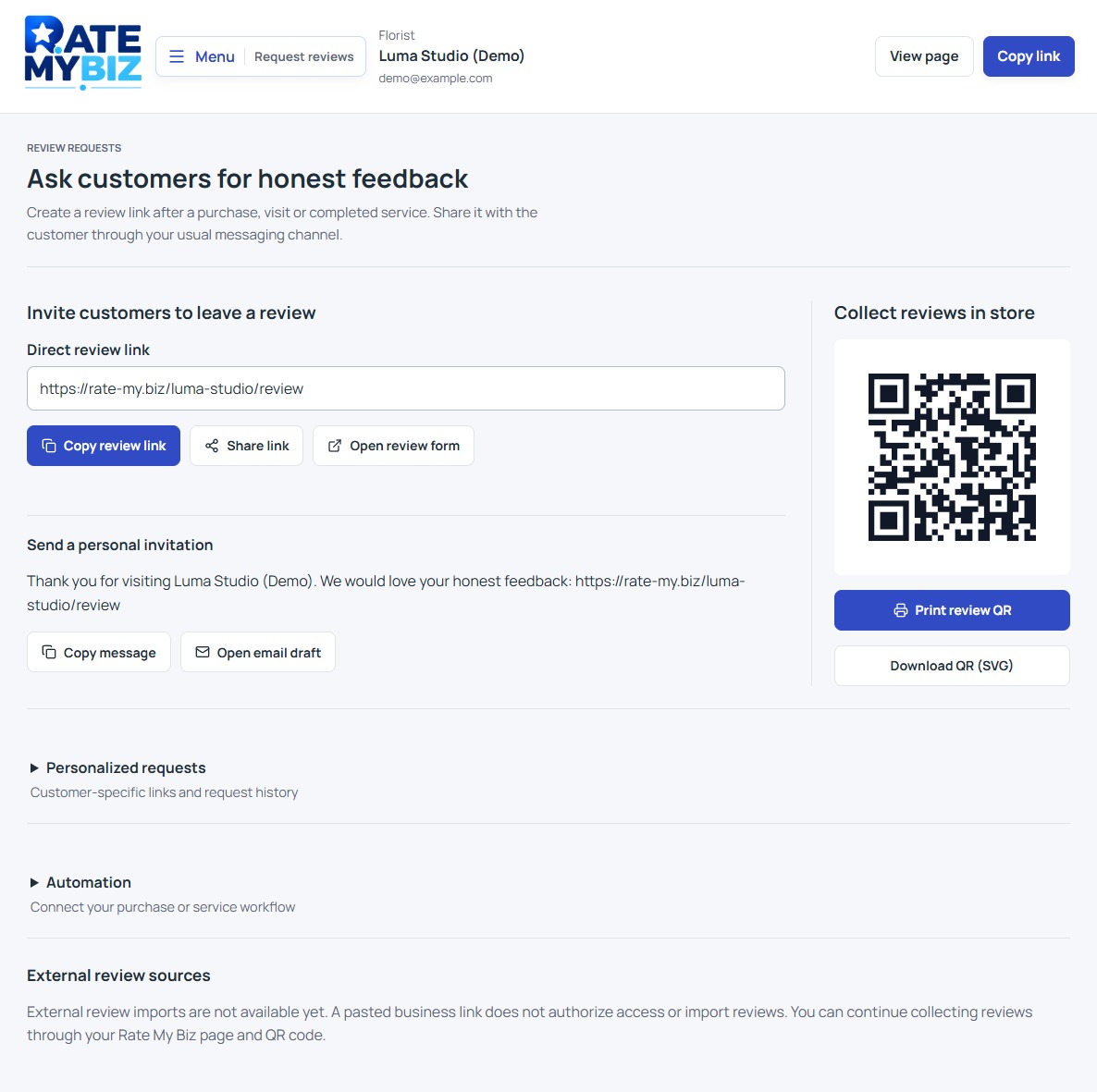
A scan starts the journey; it does not submit a review. Customers still choose their rating, write about their experience, and confirm access to their email before publication. Staff can explain those steps without watching the customer choose a score or telling them what to write.
Check printed materials periodically for damage and keep your profile details current. Rate My Biz does not currently measure QR scans or review starts in visitor analytics, so do not treat the number of published reviews as a scan count. Judge the setup first by whether customers can use it easily.
Keep this in mind
Key Takeaway
Use a clearly labeled destination, include a text link, and test the final printed code on a phone before distributing it.